Pipo Config Page Layout
Top bar:
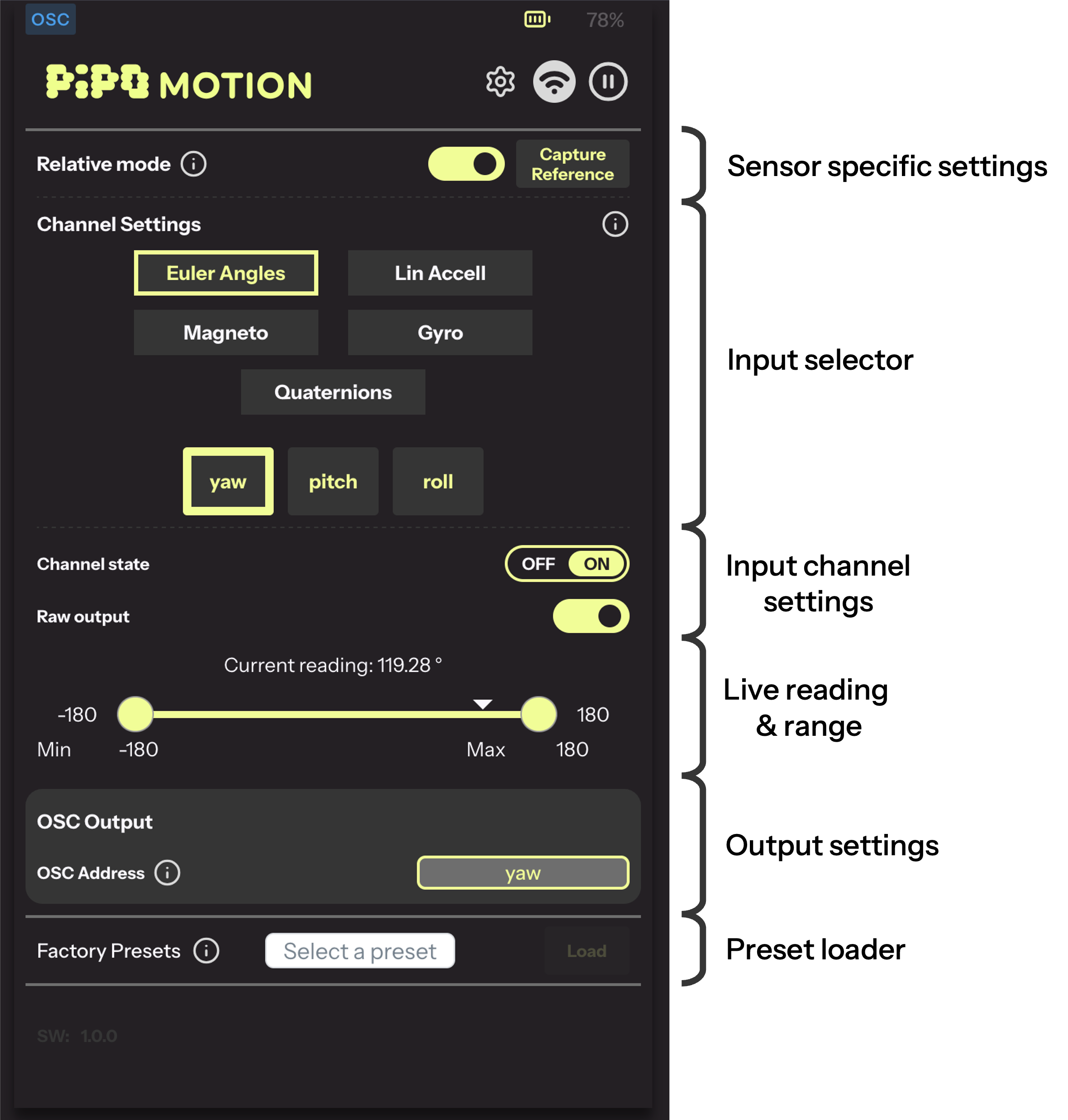
The top left symbol indicates the current mode of the Pipo: OSC or MIDI
The top right symbold indicates the battery level
Sensor Specific Settings: This section can change sensor specific mode. This section does not exist for all Pipos.
Input Selector: This panel lets you select which channel you want to configure. The top part shows the categories of inputs and the lower part lets you select an individual channel. The color code of the channels lets you quickly see which ones are enabled (name in yellow) or disabled (name in grey)
Channel input settings: This lets you turn a channel on or off, and select to apply optional transformations (see PAGE)
Live reading and range: This part shows the live sensor reading and allows you to adjust the active portion of range by moving the dots. This allow to disable certain part of the range, or to define trigger levels. (see PAGE)
Output settings: This section contains the output OSC or Midi settings of the selected channel.
Presets Loader: This allows you to load a few factory presets to help you get started or restore the original settings. First select the preset of your choice. Preset will be applied and will replace the current configuration when you click on Load.