
Pipo Motion - OSC 3D Orientation in Touchdesigner
Intro:
This section will help you setup a 3D object orientation control in Touchdesigner using Pipo Motion using OSC (this should be very similar in other 3D softwares like Isadora)
Preliminary steps:
This guide assumes you have connected your computer with Pipo in Wifi, and are either into a direct Wifi connection or through a router to transmit the OSC data.
- Go to the Pipo configuration page
- The 3 Euler angles (or quaternions) should be enabled
- If using Euler angles, the "raw output" option should be ticked for all 3 Euler angles channels
- Make sure you set the correct OSC IP destination address to send the data to your computer
In Touchdesigner:
- use "OSC IN" CHOP node to receive the data.
- Please make sure the data flows to TD before going to the next steps
Tips
Please find below the exemple files:
- object rotation using Euler angles
- object rotation using Quaternions
- rotate camera around an object (quat only)
Note: these file were created under MacOS. On Windows, the "teapot" object path must be replaced in the "filein" node. The teapot is a default TD sample object, which should be located on windows at: C:/Program Files/Derivative/TouchDesigner/Samples/Geo/TeaPot.tog
Using the Euler angles:
The simplest way to receive orientation in TD is to use the raw Euler angles. Doing so can be confusing because of the rotation orders, as well as the 3D space coordinate system you are looking at in TD might not be oriented the same way as Pipo. Orienting your TD 3D view in the same fashion as Pipo will help a lot understanding you results.
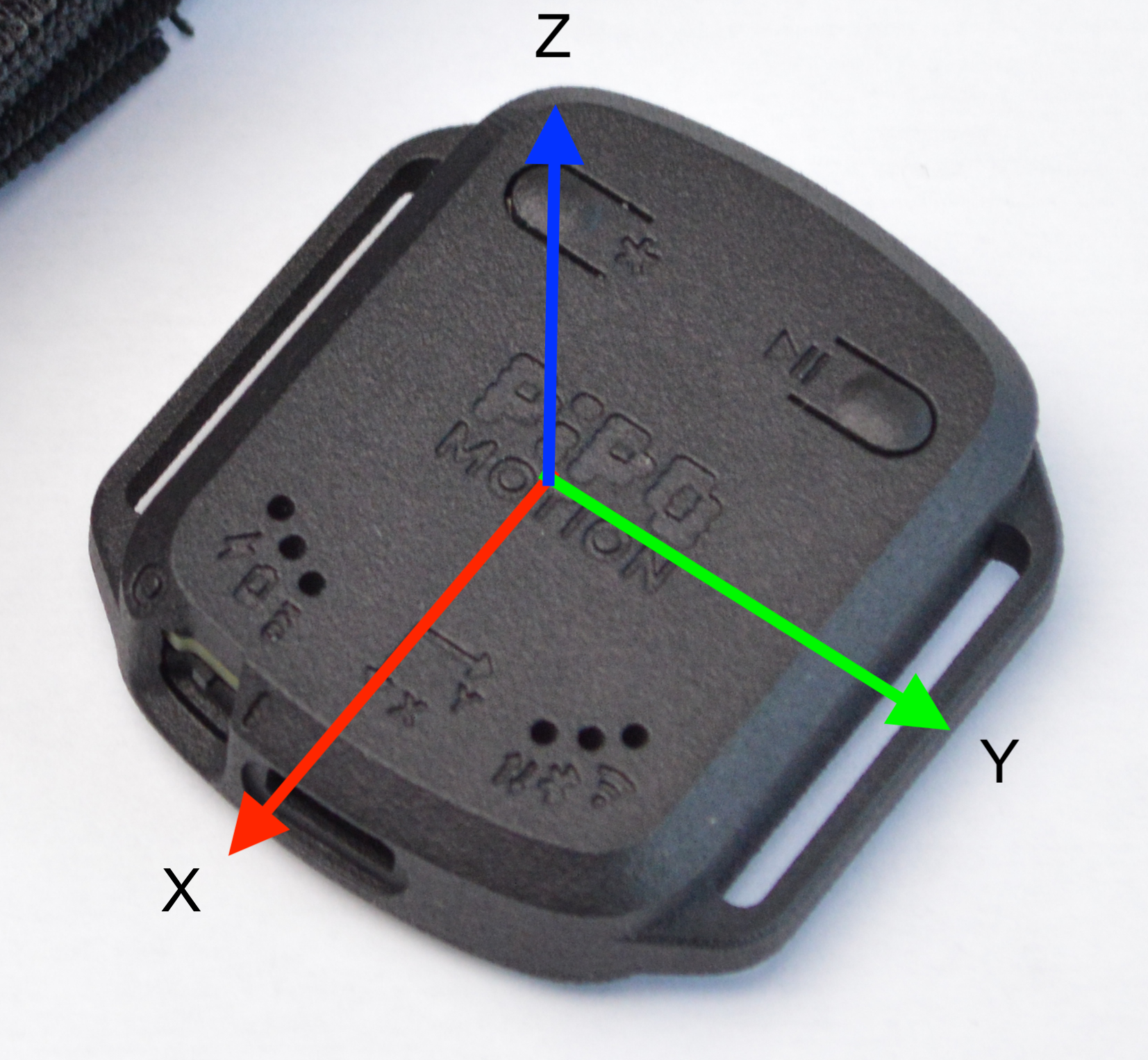
In Pipo:
- pitch is the rotation around Y axis
- roll is the rotation around X axis
- yaw is the rotation around Z axis
- the X and Y axis directions are drawn on the Pipo itself (with the z axis going up)
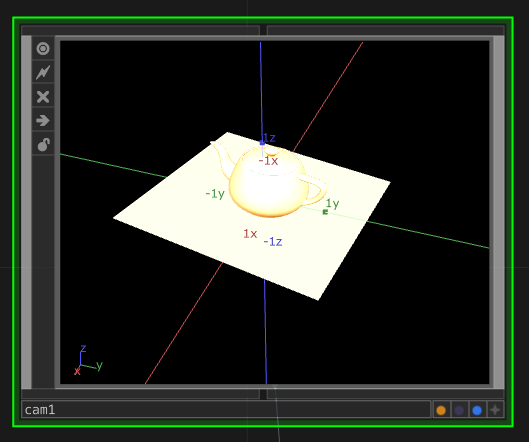
In TD, the 3D space you are looking at might be in a different orientation. For eg, below I oreintated my camera view so that I see my 3D space from the same view I look at my pipo:
Then, to rotate an object, you can simply assign the Pipo angles in the "rotate" field of a transfrom node (as below): assign roll to x, pitch to y, and yaw to z
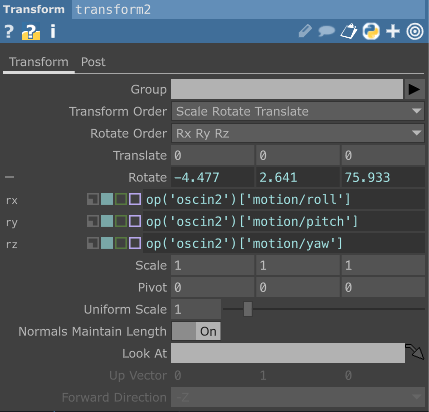
Note: do not attempt to filter the Euler angles, this will cause weird behaviour when an angle goes from -180 to 180 degrees.
Using quaternions
Pipo Motion is able to send its orientation in the form of "Quaternion" which is a much more powerful way to describe orientation. Once you are able to receive the quaternion data into touch using the OSCin CHOP, you can:
Reorder: To be able to interpret the quaternion data, TD requires the quaternions values to be in a certain order. Use the "reorder" CHOP, choose "character pattern", and select the inputs in the new order (x,y,z,w) using the arrow right to the character pattern field. Your "Character pattern field" should look similar to this: "motion/quatx motion/quaty motion/quatz motion/quatw".
Convert to Euler: In all nodes where you can later on apply the orientation for control, TD still uses Euler angles, so you can convert back to Euler angles using the "Angle" CHOP. Then you can use them anywhere like describded above.